How to Auto-Post Clips to TikTok, Reels and Shorts
November 11, 2026
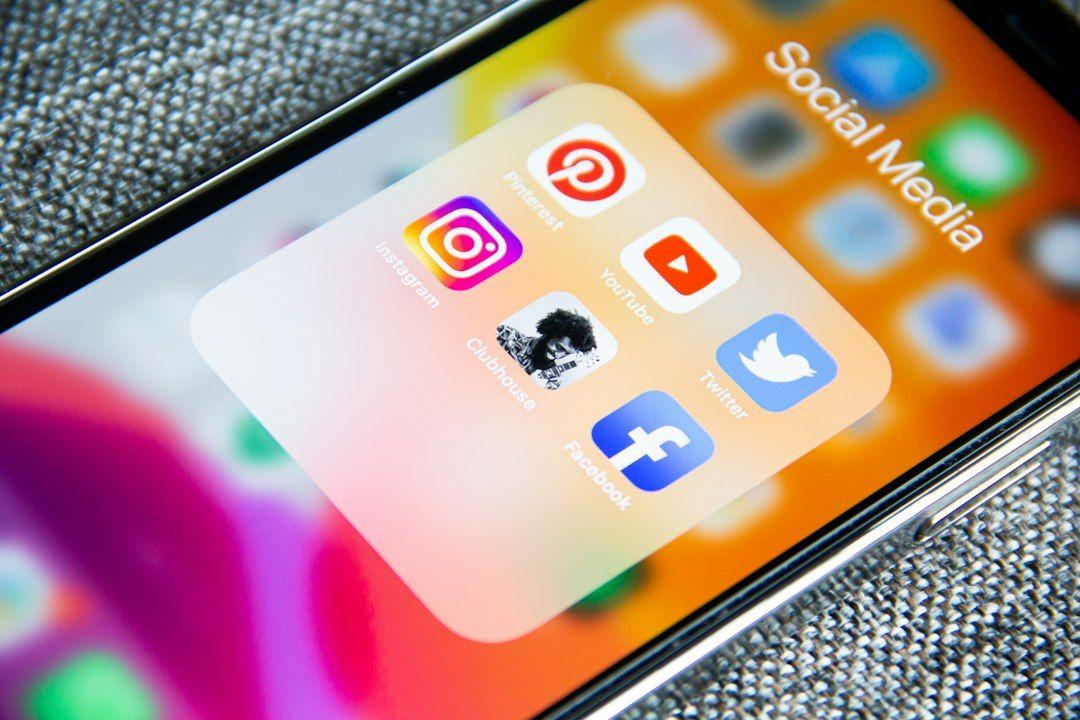
To auto-post the same clip to TikTok, Reels and Shorts, export one clean 9:16 video and schedule it from one tool that posts to all three. Here's how to set that up, platform by platform.
Updated: 11 November 2026
This guide covers what each platform's built-in scheduler can and can't do, what to change between the TikTok, Instagram and YouTube versions of a clip, a five-step setup in LumiClip, an AI video clipper that turns long videos into short vertical clips for TikTok, Reels and YouTube Shorts, and the mistakes that quietly cut your reach. We make LumiClip, so weigh our view accordingly; we've noted where other tools fit better.
What is the easiest way to auto-post to TikTok, Reels and Shorts?
The easiest way is to export one watermark-free 9:16 clip, connect your TikTok, Instagram and YouTube accounts to one scheduler, and set a post time for each. Native schedulers work, but they mean three uploads and three time limits (TikTok 10 days, Instagram 30 days, YouTube open-ended). A clip tool with built-in publishing removes the re-uploading.
If you post a few clips a month, the native apps are fine. If you post several clips a week, or clip a podcast or stream every week, one workspace that handles all three will save you hours.
Can you schedule posts natively on TikTok, Instagram and YouTube?
Yes, all three platforms have free built-in scheduling, but each works differently and none can post to the other two. TikTok schedules from a desktop browser, Instagram from the app, and YouTube from YouTube Studio or the YouTube app. Here is what each allows as of November 2026.
TikTok (TikTok Studio)
- Where: a desktop browser at TikTok Studio. TikTok's Help Center says scheduling isn't available on mobile web.
- How far ahead: at least 15 minutes and at most 10 days before publishing, per TikTok's scheduling help article.
- Who can use it: the same article limits desktop scheduling to Business accounts or accounts with 10,000+ followers. If you don't see the schedule toggle, your account doesn't have it yet.
- Watch out for: a scheduled post can't be edited, only deleted and uploaded again.
Instagram Reels
- Where: the Instagram app. When you create a Reel, tap More options and turn on Schedule this reel.
- How far ahead: up to 30 days, with a cap of 25 scheduled posts a day, per the Instagram Help Center. You need a public account.
- Helpful extra: while scheduling, Instagram suggests Follower active times based on when your followers are usually on the app.
- Watch out for: product tags and collaborative posts can't be scheduled.
YouTube Shorts
- Where: YouTube Studio or the YouTube app. Upload the Short, open the Schedule card, and set the date, time and time zone, per YouTube Help.
- How far ahead: YouTube doesn't publish a short limit. The video stays private until its scheduled time.
- Format: Shorts can be up to 3 minutes long with a square or vertical aspect ratio, per YouTube's Shorts help page.
- Watch out for: if your channel has a Community Guidelines strike, scheduled videos won't publish during the penalty period.
Why native scheduling gets painful for cross-posting
Each clip means three uploads, three caption boxes and three calendars with different limits. TikTok's 10-day window alone means returning to your desk every week. Miss a session and one platform goes quiet while the others keep posting. That's the gap a single publishing workspace fills.
What should change between the TikTok, Reels and Shorts versions?
The video file can be identical, but the caption fields, length and branding should fit each platform. Keep one clean master file and change only the text and the post settings. These differences matter most:
- Length: YouTube Shorts allow up to 3 minutes. Instagram says Reels over 3 minutes won't be recommended to new audiences. For clips you post everywhere, staying under 3 minutes keeps all three eligible for discovery.
- Text fields: YouTube has a title and a description. TikTok and Instagram have one caption. Write a short, searchable title for YouTube, and a caption with the hook and 3-5 relevant hashtags for TikTok and Instagram.
- Watermarks: never post a clip downloaded from TikTok to Reels or Shorts. Instagram's originality guidance lists "no visible watermarks" as a condition for being shown to new audiences. Your own logo is fine; another app's logo isn't.
- Safe zones: each app puts buttons, captions and the account name over the bottom and right edges of the video. Keep burned-in captions in the middle third of the frame so they stay readable on all three.
- Covers: pick a cover frame with readable text. On Instagram it shows on your profile grid; on YouTube it shows in the Shorts shelf.
For caption styles that read well on every app, see our guide on how to add animated captions to short videos. If your source is a horizontal recording, start with how to convert horizontal video to vertical.
How do you auto-post one clip to TikTok, Reels and Shorts with LumiClip?
In LumiClip you generate clips from a long video, connect your social accounts once, and schedule each clip to every connected account from the same screen. Scheduling to social accounts starts on the Starter plan; the free plan doesn't include social posting. Here's the setup.
Step 1: Create a clean 9:16 master clip
Upload a file, or paste a YouTube link on Starter and Pro. LumiClip scores each moment on hook strength, speech clarity, visual variety and emotional peaks, reframes it to 9:16 with speaker tracking, and adds word-level captions. Open the clip in the editor to retrim the start or fix a caption word. Paid plans export at 1080p with no watermark, which matters because a watermark from any tool can hurt reach on the other apps.
Step 2: Connect TikTok, Instagram and YouTube
Connect each account once. On the pricing page as of 11 November 2026, the plans differ in how many accounts and posts you get:
- Try-Out (€7.99 one-time): 1 social account and 10 social posts a month.
- Starter (€9.99/month): 6 social accounts, 100 social posts a month and the auto-scheduler.
- Pro (€24.99/month): 20 social accounts, unlimited social posts, the auto-scheduler and the automation agent.
One clip posted to TikTok, Instagram and YouTube counts as three posts, so Starter's 100 posts covers about 33 cross-posted clips a month.
Step 3: Write the caption for each platform
Give the YouTube version a title that says what the clip is about, and give TikTok and Instagram a caption that opens with the hook. Don't paste the same hashtag block everywhere; pick the few that describe the clip. Reuse your brand template so the burned-in captions, logo and colours are identical on every platform.
Step 4: Pick times and schedule
Choose a post time per platform and schedule. You don't need to post everywhere at the same minute. A simple pattern is to post the clip to all three on the same day at the hour each platform's analytics shows your followers are most active, then move on to the next clip.
Step 5: Let the agent do it automatically (optional)
On Pro, the YouTube automation agent removes the manual steps. It watches up to 10 YouTube channels, picks the three highest-scoring clips from each new upload, and schedules them to every connected account: the first one hour after the upload is detected, then one every two hours. TikTok, Instagram and Facebook get a single caption with hashtags; YouTube gets a title and description. Turn on drafts mode if you'd rather review clips before they post. Our guide on how to auto-clip a YouTube channel to TikTok walks through that setup, and auto-clipping multiple YouTube channels covers running several at once.
What time should you post on each platform?
There's no single best time that works for every account, so use each platform's own audience data. Instagram suggests follower active times right in the scheduling screen. TikTok's analytics and YouTube Studio's Audience tab show when your viewers are online. Start there, then compare results after a few weeks.
A few practical rules help more than any generic "best time" chart:
- Be consistent: a steady rhythm, such as one clip a day, is easier to keep and to measure than bursts.
- Don't burst-post: spacing clips a few hours apart gives each one time to collect views before the next lands.
- Schedule in your audience's time zone: TikTok uses your computer's time zone and YouTube lets you choose, so double-check both if your audience lives elsewhere.
What are the most common cross-posting mistakes?
The biggest mistakes are posting watermarked files, using one caption everywhere and letting one platform's schedule lapse. Each one is easy to fix once you know to look for it.
- Reposting downloads: saving your TikTok and uploading it to Instagram carries the TikTok watermark. Always post from the original export.
- Clips over 3 minutes: fine for YouTube Shorts, but Instagram won't recommend them to new audiences.
- Captions hidden behind buttons: check the preview on each app before scheduling.
- Same hashtags everywhere: YouTube in particular works better with a clear title than a wall of tags.
- No review step: if you automate, start in drafts mode for a week so you can catch a weak clip or a caption typo before it goes live.
Which tools can auto-post to TikTok, Reels and Shorts?
You have three options: the free native schedulers, a general social media scheduler, or a clip tool with publishing built in. The right choice depends on whether you also post non-video content and how many clips you make.
Native schedulers
- Strengths: free and official, with no extra account connections.
- Watch out for: three separate uploads per clip, TikTok's 10-day limit and desktop-only scheduling.
General social media schedulers (such as Buffer, Later or Metricool)
- Strengths: one calendar for all your content, including photos, carousels and text posts. A better fit if short clips are only part of what you publish.
- Watch out for: they don't make clips. You still need to cut, reframe and caption videos somewhere else first.
Clip tools with built-in publishing
- Strengths: clipping, captions and scheduling in one place. LumiClip also auto-posts on its own when the agent watches a channel. OpusClip's pricing page lists auto-posting to YouTube Shorts, TikTok and Instagram Reels on Starter ($15/month) and adds a social media scheduler on Pro ($29/month), as of 11 November 2026.
- Watch out for: they focus on video, so you may still want a general scheduler for other post types. Check how many social accounts and posts each plan includes.
FAQ
Is it OK to post the same video on TikTok, Reels and Shorts?
Yes, posting your own clip on all three is normal. Use the original, watermark-free file for each upload, and adjust the caption and title for each platform.
Can I schedule TikTok posts from my phone?
Not with TikTok's own scheduler, which TikTok documents for desktop browsers only. Third-party tools and clip tools with publishing let you queue TikTok posts without opening TikTok Studio.
How far ahead can I schedule Instagram Reels?
Up to 30 days in the Instagram app, with a limit of 25 scheduled posts a day. Meta says eligible Meta One subscribers can schedule further ahead.
Will a TikTok watermark hurt my Reels?
It can. Instagram says content needs no visible watermarks to be eligible for recommendations to new audiences, so a Reel with a TikTok logo will mostly reach existing followers.
Can I edit a TikTok after scheduling it?
No. TikTok says scheduled posts can't be edited, only deleted. Delete it and schedule it again with the fix.
Does LumiClip's free plan auto-post?
No. The free plan gives 60 one-time credits for testing clips, with watermarked 720p exports and no social posting. Scheduling starts on Starter at €9.99/month.
Set up your first cross-posted clip
Pick one strong clip, export it without a watermark, write a title for YouTube and a caption for TikTok and Instagram, and schedule all three for the same day. Once that feels routine, automate the clipping too.
Try LumiClip free, no credit card needed, or compare plans on the pricing page.
Try LumiClip free
Paste a YouTube link and get viral Shorts in minutes. No credit card required.